Dirk's professional Accordion Tuner 2.5
Introduction
accordion tuning. accordion tuner
This tuner is developed for tuning accordions and similar 'free-reed' instruments such as the diatonic harmonica, the concertina, the bandoneón, the melodica and the reed organ.
Dirk's Tuner is developed for professional experienced tuners, but because it gives good insights in the tuning process, it is very suitable for beginning tuners as well.
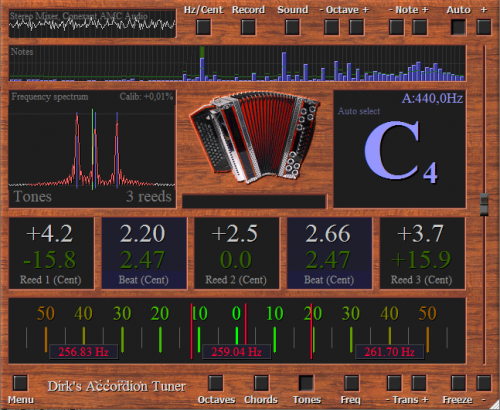
The unique possibilities of this tuner simplify and accelerate the tuning process considerably. The tuner has a large range from E0 up to C9, a very high accuracy of less than 0.05 Hz (waves of longer than 20 seconds) and can measure to three reeds at the same time. Because of this the tuning of the accordion can be measured without disabling reeds before opening the case. The real frequencies of the reeds which are influenced by each other and by the case can be measured now. This way it is considerably simpler and quicker to select the reed that deviates and needs attention. The tuner measures beat that arises because the reeds sound together and shows these in Cent or Hertz. Beat cannot be measured accurately enough by measuring the reeds separately, but by measuring them at the same time it is accurate enough. The measured beat is compared to the beat list of the accordion concerned which indicates the desired beat for each note. This beat list can be produced rapidly and simply using a graph in the tuner.
Also chords (three reeds) and octaves (two or three reeds in several octaves) can be measured by the tuner, so the case does not need to be opened for these as well.
Beside the mentioned basic functions, the tuner has a lot of additional functions such as:
- increase the tuner to a full screen for a clear overview.
- freeze the screen to be able to examine the numbers and graphs well.
- play notes using the sound card.
- automatically or manually select the notes to measure.
- automatic correction of possible errors in the accuracy of the sound card.
- automatic reduction of undesirable context sounds and disturbances.
- make alternative tunings.
The 'record and report' module
The tuner can be extended with a module that can record and save all notes of the accordion quickly and create a report afterwards. This report gives the error of each reed in an easy to read table. After opening the accordion, the reeds which deviate too much can be corrected on the tuning table using the values from the report. The reeds (that have a deviated frequency outside the case) will get the correct frequency after being put back in the accordion. The report can be printed again afterwards and join the accordion as a tuning report. With the module, it is also possible to easily copy the beats from another instrument.
New in version 2.5:
The sounding reeds can now be selected independently. For example, reed 3 can be selected while reed 1 and 2 are not selected. In this example one reed is sounding and the deviation of reed 3 in the beat list is used for tuning. In the previous versions of the software reed 1 would be selected automatically when one reed was sounding. It is still possible to select two or three reeds at the same time. In that case, multiple reeds are measured simultaneously.
See chapter 'Tuning' below.
Dirk's professional Accordion Tuner
Tune accordions quick, easy and professional
Compatibility
Microsoft

- Desktop
- Laptop
- Netbook
- Tablet
- Phone
- Pocket PC
- Windows 11
- Windows 10
- Windows 8.1
- Windows 8
- Windows 7
- Windows Vista
- Windows XP
- Windows ME
- Windows 2000
- Windows 98
- Windows Phone
- Windows RT
Apple

- iMac
- Mac Pro
- Mac mini
- MacBook
- Intel cpu
- M1 & M2 cpu
- iPad
- iPhone
- Sonoma
- Ventura
- Monterey
- Big Sur
- Catalina
- Mojave
- High Sierra
- Sierra
- El Capitan
- Yosemite
- Mavericks
- Mountain Lion
- Lion
- Snow Leopard
- Leopard
- Tiger
- iOS iPhone
- iOS iPad
The tuner is available in the following languages:
The trial version
The trial version is meant for getting a good idea of the possibilities of the tuner. Only part of the notes from the scale can be measured with this version. The following notes are supported:
E0 F0 G#0 A0 C1 C#1 E1 F1 G#1 A1 C2 C#2 E2 F2 G#2 A2 C3 C#3 E3 F3 G#3 A3 C4 C#4 E4 F4 G#4 A4 C5 C#5 E5 F5 G#5 A5 C6 C#6 E6 F6 G#6 A6 C7 C#7 E7 F7 G#7 A7 C8 C#8 E8 F8 G#8 A8 C9
A number of important terms
- Frequency
the number of waves per second of a tone (pitch).
- Sound
the total range of wavelengths that can be perceived by the human ear.
- Tone
sound with a fixed pitch.
- Note
notation indicating a tone with a specific pitch and length.
- Scale
increasing or decreasing sequence of tones in a fixed order.
- Pitch
the perceived frequency of a tone. This is the fundamental frequency.
- Fundamental tone or tonic
the perceived pitch. The lowest tone of the collection of tones that make up a sound.
- Overtone
a tone in a sound that has a higher frequency then the tonic. The overtones are multiples of the tonic.
- Beat(ing)
a beat(ing) occurs when two tones with a small difference in pitch sound at the same time.
- Interval
The difference in pitch between two tones.
- Semitone
the smallest musical interval in western music. An octave exists of twelve semitones. In an equal temperament all semitones are evenly divided in frequency. On a piano the interval between two adjacent white keys, is one semitone, if there is no black key in between. If there is a black key in between the adjacent white keys, then the interval between the two white keys is two semitones. In that case the interval between the white keys and the black one is one semitone. The interval between a tone and the same sharp tone (for example C and C#) is always one semitone.
- Octave
the difference between two tones where the second tone has twice the frequency of the former.
1 Octave = 12 Semitones.
- Tuning or temperament
the way in which the combination of frequencies for a specific range of tones on an instrument are selected. In Western music the equal temperament is most popular. Other temperaments are for example: the just intonation, the Pythagorean tuning, the mean tone temperament, the well temperament and the 31 equal temperament.
- Chromatic scale
a chromatic scale is a scale that contains all twelve semitones within an octave:
c – c# – d – d# – e – f – f# – g – g# – a – a# – b (the white and black keys of a piano)
- Half-tone and whole-tone steps
a half tone step is equal to an interval of one semitone such as the interval between two adjacent white keys on a piano without a black key in between. A complete tone step is equal to an interval of two semitones such as the interval between two adjacent white keys on a piano that do have a black key in between.
- Diatonic scale
a diatonic scale is a scale with half and whole-tone steps:
C major: c – d – e – f – g – a – b (the white keys on a piano or the buttons on a diatonic accordion)
C minor: c – d – eb – f – g – ab – bb
- Hertz
unit for frequency.
1 Hz = 1 wave per second.
- Cent
logarithmic unit for the difference in pitch with respect to a tone in the scale.
1200 Cent = 1 Octave.
100 Cent = the distance between 2 successive semitones in an equal temperament.
- Frequency spectrum
all frequencies that occur in a sound. The frequency spectrum can be presented in the form of a graph.
- Bisonoric
the term 'bisonoric' is used to indicate to that a key of an accordion-like instrument generates a different tone when closing or opening the bellows. Examples: bandoneón, squeeze box, harmonica.
- Tuning table
a work table with all kinds of supplies for tuning the reeds of an accordion.
Choice and placement of the microphone
Built in microphone or external USB microphone?
A built in microphone such as those that are often present in laptops, are not always usable. A build in microphone catches more surrounding noise than an external microphone. The case of the laptop catches up sounds and vibrations and passes them on to the microphone. The cooling fan of the laptop is also an important source of surrounding noise. An external USB microphone can be placed away from a laptop or computer. This way the microphone won't pick up these surrounding noises.
Furthermore, a built-in microphone can often not measure the lowest frequencies, which are necessary for correctly tuning an instrument. For this reason, it's better to use an external USB microphone which has a range of 20Hz to 20kHz.
Another disadvantage of the built in microphone is that it is difficult to position it right with respect to the instrument. An external USB microphone, that is connected with a wire, can be placed on the desired location.
A USB microphone also has the advantage that it won't cause as much interference compared to a microphone that is connected to the sound card of a computer.
Lastly is it better to use an external USB condenser microphone instead of a dynamic microphone. This is because a condenser microphone is more sensitive to the lower sounds.
A more expensive phantom powered microphone is also a suitable option since these microphones also meet the requirements to correctly tune an instrument. Do however keep in mind that a microphone that is meant for singing, usually, is not suitable since these microphones filter out the lower and higher sounds.
Digital effects
Most microphones can modify the sound signal by using digital effects. These are effects such as 'echoes', 'hum filters', 'stereo enhancement', 'direction sensitivity' and 'noise suppression'. These effects can distort the recorded sound as a result of which the tuner will not function properly. Therefore, effects have to be disabled. On the other hand, microphone settings such as 'boost', 'sensitivity', 'volume', 'gain' and 'balance' are of no consequence.
Placement of the microphone
The placement of the microphone with respect to the accordion largely determines the sensitivity of the microphone for the accordion reeds that need to be measured. Always place the microphone on the same side of the accordion as the reeds that need to be measured. If the reeds on the keyboard-side are measured then the microphone must be placed on the side of the keyboard. If the reeds on the bass-side are measured then the microphone must be placed on the bass side of the accordion. If the reed block is taken out of the accordion and it is being tuned on the tuning table, then the microphone must be placed above the reed block so that all reeds can be measured evenly strong. If two reeds sound at the same time (evenly loud) and the microphone is placed at the wrong position, then it is well possible that one of the two reeds is measured much weaker. This will influence the accuracy of the measurement negatively.
The distance from the microphone to the accordion
If the microphone is placed closer to the accordion, the background sounds become weaker, with respect to the sound to measure. This improves the measurement. A distance of less than half a meter gives the best result.
Conclusion
An external USB condenser microphone with a cable connected to the computer is the preferred configuration. A microphone like this can be easily placed in a proper location. Because of this, such a microphone will pick up less surrounding noise.
The frequency range of really cheap microphones is in most cases unknown. Most external USB condenser microphones will be able to reach the required frequency range of 20Hz to 20kHz. Always check the specifications.
With such a microphone, the internal sound card of the computer is not used, which prevents any interference the sound card may create.
At all times, digital effects have to be disabled!
The first use
Tooltips
Hovering the mouse-cursor above a button or a window, will show a "tool tip". A tool tip is a small text box with explanation about that particular button or window.
Select the sound input
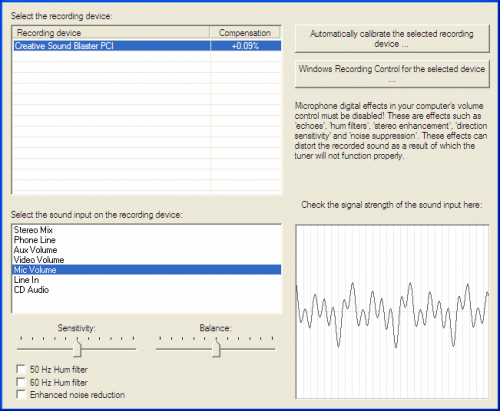
To be able to use the tuner it is necessary to select and configure the desired sound input channel. Generally this will be a microphone. When you start up the tuner for the first time the configuration screen is shown automatically.
At 'select the recording device' you select the sound card. The different sound inputs of the selected sound card are enumerated at 'select the sound input in the recording device'. Here you select the sound input to use.
The resulting signal from the selected input is shown in the graph at bottom right. The tuner works best when the input signal is as strong as possible, but it should stay clear of the top and the bottom of the graph to avoid distortion. The strength of the signal can be controlled by moving the 'Sensitivity' slider. When a microphone is selected and its signal is too weak, the check mark 'Microphone boost' can be set to amplify the signal more.
If you have a stereo input with a "Balance Slider", you'll have to set its slider in the middle.
A component of Windows Mixers is 'Windows Recording Control'. This is the place in Windows where the sound input is selected and configured. The settings screen of the tuner does the same as a result of which the Windows settings are not necessary.
Sometimes a hum (50 or 60 Hz) is audible on the input. This is generally caused by either bad earthing or a bad power supply. It can be taken out by checking one of the hum filter boxes. Not using these filters can result in unwanted detection of certain tones e.g. G1 (49Hz), A#1 (58,27Hz) or B1 (61,74Hz).
Tuning
1. See to quiet surroundings
The tuner removes undesirable monotonous background sounds. It is however virtually impossible to distinguish a playing accordion in the background from the desired foreground sounds. The sounds to tune must be louder than the background sounds and the background sounds influence the speed of the tuner negatively. The best result is reached in quiet surroundings with few background sounds.
2. Wait for the initialization
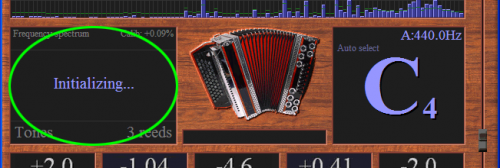
Start the tuner and wait until the text 'Initializing…' disappears. Shortly after start up the tuner measures the background sounds for approximately five seconds. If a note is played during this period, it will be considered as a background sound. This note will then not be recognized shortly after the initialization. If this happens, then stop playing the note and waits approximately ten seconds before playing the note again.
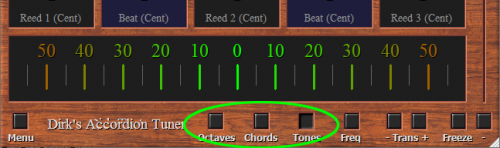
3. Octaves, chords or tones
Choose what you want to tune using the buttons 'Octaves' (2 or 3 reeds an octave apart), 'Chords' (3 reeds) and 'Tones' (1, 2 or 3 reeds within the same tone).
4. Select the sounding reeds
Select the sounding reeds by clicking on the corresponding reeds. The number of selected reeds must equal the number of reeds that sound at the same time. If more reeds sound than are selected, then the tuner will recognize the loudest reeds, but never more than selected. If the sound volumes of the reeds lie closely to each other and varies a bit then the reeds recognized by the tuner can jump from one to the other and the reading will be difficult. If less reeds sound than are selected, then there is a chance that the tuner recognizes a tone from the background sounds. This chance however is small and if it happens, it is not really a problem, but it makes the reading less clear.
5. Play the note to tune
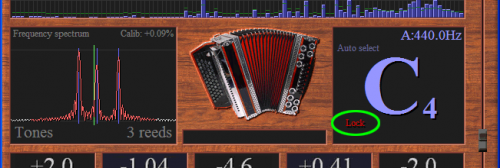
Play the note to tune with constant bellow pressure until the red text 'Lock' appears. The pitch of the reed varies a bit with the bellow pressure. If the bellow pressure gets higher the top of the reed will swing back and forth further as a result of which the pitch decreases. For this reason it is important to tune with approximately the same bellow pressure as with which the accordion is played. As soon as the measured note is stable and accurate the red text 'Lock' appears. The tuner will now no longer jump to another note as long as the current note plays.
6. Do not play the note for too long
The tuner removes long lasting monotonous background sounds such as the sound of a cooling fan. If the note to measure lasts for too long (approximately 30 seconds), then it will be recognized as a background sound and will be removed. If this happens, stop playing the note for approximately five seconds before continuing tuning.
7. Watch the sound volume
If the sound volume is too high the input signal will deform, which influences the functioning of the tuner negatively. If this occurs regularly, then go to the configuration screen (Menu - Settings) and reduce the sensitivity of the input signal ('Sensitivity' slider). The tuner watches the sound volume and shows to the red blinking text 'input signal too strong!' as soon as the volume become too high.
8. Check the detected note
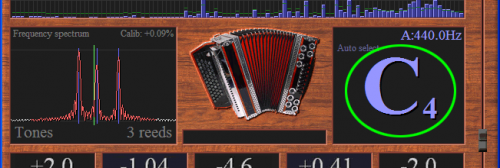
The tuner shows the value of the detected note. The octave of the note is shown at the bottom right of the note character. The A of 440 Hz is in octave 4 and is shown as A4.
9a. Read the errors numerically
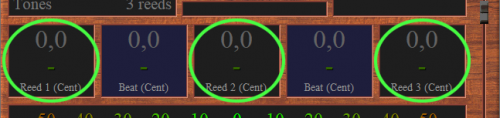
The errors of the measured reeds are shown by the tuner numerically. These errors can be calculated with respect to the exact frequency from the scale. This way the reeds must be tuned so that the measured errors (upper values) are equal to the desired errors (lower values) from the beat list. The errors can also be calculated with respect to the desired errors from the beat list. This way the reeds must be tuned so that the measured errors are all zero. The method that is used to calculate the errors can be configured in the configuration screen (Menu - Settings).
9b. Read the errors with the moving needles
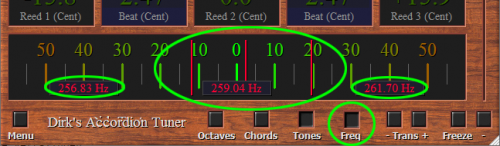
The errors of the measured reeds are also shown by the tuner by means of moving red needles. These errors are calculated with respect to the exact frequency from the scale. The scale of the gauge runs from 50 Cent too low to 50 Cent too high. This is the range of one semitone. This way the reeds must be tuned so that the measured errors are equal to the desired beat. The errors cannot be calculated here with respect to the desired beat from the beat list. The absolute frequencies of the measured reeds can be shown in text boxes (in Hertz). With the 'Freq' button at the bottom of the tuner these boxes can be turned on and off.
10. Read the beats
The beats of the measured reeds are shown by the tuner numerically. The 'Hz/Cent' button changes between presentation in Hertz or in Cent.
Freeze the tuner
The tuner can be frozen so that the shown values and graphs remain unchanged and can be read quietly. The tuner is also frozen by pressing the spacebar on the keyboard.
Enlarge the tuner to a full screen
The tuner can be enlarged to a full screen so that the shown values and graphs can be read well, also on a larger distance.
The input signal
The sound signal that the tuner uses for its measurements is graphically shown in the top left corner of the tuner. The degree in which the signal goes up and down indicates the strength of the input sound. If the sound becomes too strong to fit in its window, then the signal is not shown any stronger so that it will always fit in its window. The name of the sound input that is chosen in the settings screen (Menu - Settings) is also shown in this window.
You can use this window to check if the input signal is present.
The equalizer
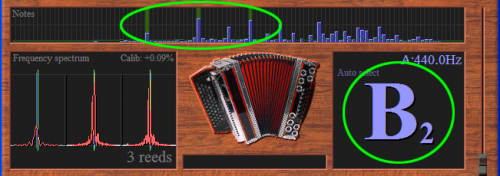
The tuner converts the input signal from a time signal to a frequency signal. The equalizer shows the strength of the measured notes (from E0 up to C9) graphically. Each vertical blue bar reflects the strength of the note concerned. How stronger the note in the measured signal how higher the bar. If one of the bars becomes too strong to fit in its window, then the bars is not shown any stronger so that it will always fit in its window. In this case all notes are shown less strongly so that the note strengths with respect to each other are still correct. In this window also the overtones present in the input sound are visible.
The tuner does use these. The strengths of the background sounds are represented by a small horizontal green line. If the blue bar reaches the green line then the tuner recognizes that note as a foreground sound. The tuner selects the note to tune from the foreground sound. The selected note is marked by a dark green background. When tuning chords or octaves several notes are selected.
The detected note
The detected note is shown as a character, an octave number and possibly a sharp sign in the note window of the tuner. The frequency of the tone in the scale is shown in the top left corner of this window. This is not the measured frequency. Below this frequency it is indicated if the note is selected automatically or manually. The configured frequency for the A4 is shown in the top right corner of this window. This is 440.0 Hz by default. If the notes are transposed then this is indicated at the bottom of this window.
The frequency spectrum of the detected note
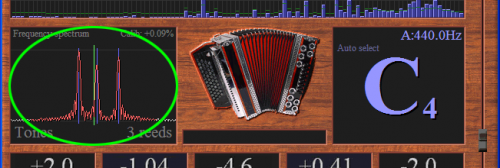
The vertical blue bar in the equalizer of the detected note covers a small part of the total frequency spectrum (all blue bars) of the input sound. The tuner enlarges the frequency spectrum of this one detected blue bar and shows it graphically in the frequency spectrum window. The horizontal axis represents the frequency and vertical axis represents the strength of the frequencies. The red line shows the frequency spectrum of the detected note. The ends of the red line proceed in white lines. These white lines show a small part of the adjacent notes. The high peaks in the red line indicate the measured frequencies of the input sound. Each sounding reed of the accordion causes a peak in the frequency spectrum. The distance between two peaks determines the frequency of the observed beat. The tuner detects the peaks in the red line and marks these with blue vertical lines. There are no more peaks detected than the number of reeds configured.
The configured number of reeds is shown in the bottom right corner of this window. The vertical dark green line indicates the frequency from the scale of the detected note. The vertical light green lines indicate the desired deviations for the reeds from the beat list. The distances between the blue and the green lines indicate the errors of the reeds. If single tones, chords or octaves are measured is shown in the bottom left corner of this window. The calibrated correction factor for the frequencies is shown in the top right corner of this window.
The errors of the reeds
The errors of the reeds are shown numerically and with moving red needles. The beats are calculated and shown numerically. The absolute frequencies of the reeds can be shown numerically as well.
Manual selection of the note to tune
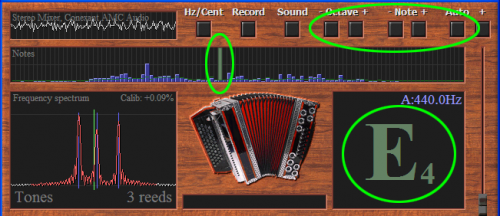
If the 'Auto' button is pressed then the tuner selects the note to tune automatically. If this button is not pressed then the note to tune can be selected manually. The note to tune can be selected with the four buttons '- Note +' and '- Octave +'. The left and right arrows on the keyboard can also be used for this. The selected note is marked in the equalizer window with a green background.
Manual selection of the note to tune can be used (among other things) in the following situations:
- In the automatic selection mode the tuner selects the fundamental of the input sound. In manual selection mode it is possible to measure one of the other tones (for example an overtone).
- In manual selection mode the tuner reacts more sensitively as a result of which it becomes possible to measure weaker tones.
- In the settings screen (Menu - Settings) it can be configured that the tuner must measure continuously, in the manual selection mode, also if there is no foreground sound present. This way long lasting sounds can be measured.
- If many disturbing background sounds are present in the automatic selection mode, it can occur that the tuner selects the wrong note now and then.
Measuring long lasting notes
Long lasting notes will be recognized by the tuner as background sound after approximately 30 seconds. These sounds will then no longer be selected automatically. In the settings screen (Menu - Settings) it can be configured that the tuner must measure continuously, in the manual selection mode, also if there is no foreground sound present. This way long lasting notes and other background sounds can nevertheless be measured.
Playing notes
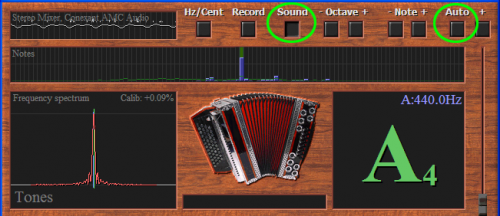
In manual selection mode the tuner can play notes using the sound card. By clicking on the 'Sound' button the selected note is played for ten seconds. The tuner corrects the frequency of the playing note by means of the calibration which is carried out at start up. Because of this the playing note is not dependent on the accuracy of the sound card. The generated sound wave is sine shaped. Sound volume is strongly dependant on the pitch and the frequency characterization of the used speakers. Without a bass speaker the lower tones (below the C3) can generally not be heard at all. The playing note can be used to check the tuning 'by ear' or to find the selected note on the accordion quickly. It is also a quick test to check if the tuner is functioning.
Transpose
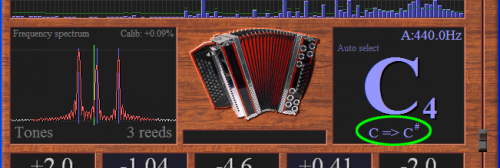
To tune your instrument in another tone then the standard C, you can use the buttons '- Trans +' in the bottom of the tuner. With these buttons the tuning can be transposed to another tone. In the bottom of the note screen it is indicated where the C of the instrument is transposed to. 'C => C#' means that when a C is measured this is shown in the tuner as a C#. All other tones are transposed proportionally. The transpose function only works when measuring single notes and not when measuring chords or octaves.
Configure the frequency of the A4
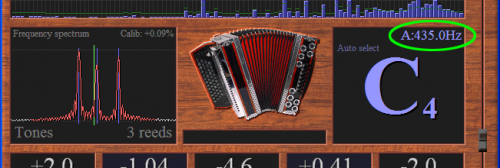
To tune an instrument in another pitch then the standard A=440Hz you can use the slider on the right side of the tuner. With this slider the frequency of the A4 can be adjusted between 430Hz and 450Hz in steps of 1Hz. All other tones will change proportionally. If the frequency must be adjusted even further, it is possible to combine the A4 frequency with transposing one or more semitones. By double clicking on the slider the default frequency of 440Hz is set again. The current pitch (frequency) of the A4 is shown in the top of the note window.
If notes are recorded with the 'Record' button then it is not possible to modify the frequency of the A4. In order to be able to compare the recorded notes it is necessary that the A4 frequency stays the same.
Measuring chords
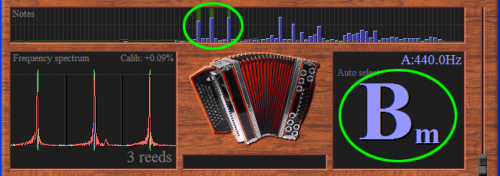
The tuner can measure chords which exist of three notes. The three notes are measured at the same time as a result of which the tuner is able to show the name of the chord such as: Dm, A, Fsus2 or Edim. The tuner measures chords if the 'Chord' button at the bottom of the tuner is pressed.
The tuner selects the three notes of the chord from the input sound and marks these in the equalizer window with a dark green background. The name of the chord is shown in the note window. The frequency spectrum window is subdivided into three parts so that the frequency spectra of all three notes can be shown.
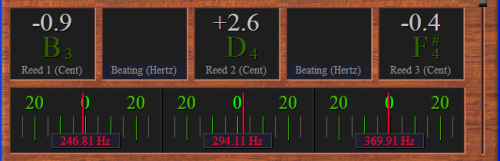
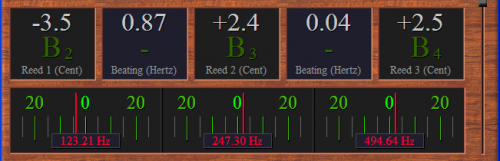
The measured errors of the three reeds are shown numerically and with three red needles. The name of the note from the chord is shown in dark green together with the concerning numerical errors. The errors are calculated with respect to the exact frequency from the scale. The scale of the windows with the red needles runs from 30 Cent too low to 30 Cent too high. The absolute frequencies of the measured reeds can be shown in text boxes (in hertz). The 'Freq' button at the bottom of the tuner turns these boxes on and off.
Measuring octaves
The tuner can measure two or three notes which are an octave apart at the same time. The octaves must be succeeding. It is not possible to skip octaves. If the octaves are not succeeding then these notes can be measured using the manual selection mode. The tuner measures octaves if the 'Octaves' button in the bottom of the tuner is pressed.
With the 'Reeds' button in the bottom of the tuner it is configured if 2 or 3 notes are measured. The configured number of notes is shown in the bottom right corner of the frequency spectrum window. The tuner selects the notes in the successive octaves from the input sound and marks these in the equalizer window with a dark green background. The name of the note and the octave number of the lowest note is shown in the note window. The frequency spectrum window is subdivided into three parts so that the frequency spectra of three notes can be shown.
The measured errors of the reeds are shown numerically and with the red needles. The name of the note and its octave number is shown in dark green together with the concerning numerical errors. The errors are calculated with respect to the exact frequency from the scale. The scale of the windows with the red needles runs from 30 Cent too low to 30 Cent too high. The absolute frequencies of the measured reeds can be shown in text boxes (in Hertz). The 'Freq' button at the bottom of the tuner turns these boxes on and off.
With notes in several octaves, the beats that occur between the overtones of the lower octaves and the higher octaves can be heard. These beats are measured by the tuner and is shown in hertz or in Cent. The 'Hz/Cent' button in the top of the tuner changes between Hertz and Cent. In the case of Cent, the beats are calculated with respect to the higher octave.
Settings
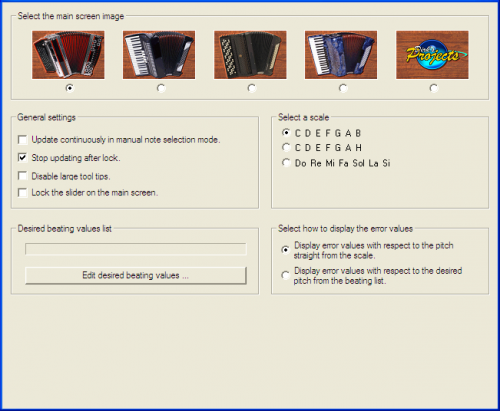
The settings screen can be opened by clicking on the 'Menu' button at the bottom of the tuner. A menu will appear in the top left corner of the tuner in which the option 'Settings…' must be chosen. The settings screen can also be opened by clicking on the window with the input signal in the top left of the tuner.
How the errors are calculated
In the middle of the right side at 'select how to display the error values' you can choose how the measured reed errors are shown. There are two options:
- 'Display error values with respect to the exact pitch from the scale'. With this option the measured error of the reed is calculated with respect to the exact frequency of the note in the scale. This means that, during tuning, the error shown by the tuner (upper value) must become equal to the desired error from the beat list (lower value).
- 'Display error values with respect to the desired pitch from the beat list'. With this option the measured error of the reed is calculated with respect to the desired error from the beat list. This means that, during tuning, the error shown by the tuner (upper value) must become zero.
Choosing the image on the main screen
In the top right corner at 'select the main screen image' the instrument that it is displayed in the middle of the tuner is chosen.
Constantly keep on updating (measuring) in manual selection mode
The measured values and graphs are updated if the tuner recognizes foreground sound. Background sounds are not measured. Foreground sounds which last for a long time (approximately 30 seconds) are also considered background sound. Because of this it is not possible to continue measuring sounds over a long period. By enabling the setting 'Update continuously in manual note detection mode' in the middle of the right side of the tuner, the tuner updates the measured values and graphs ongoing in manual selection mode. This does not work when the tuner is in recording mode.
Stop updating (measuring) after the note is locked
If a detected note is locked, the tuner continues updating the measured values and graphs. By enabling the setting 'Stop updating after lock' in the middle of the right side, the tuner stops updating after the note is locked.
Disable the large tool tips
By hovering above a tool of the tuner (button, window, slider, check mark, text, etc.) with the mouse pointer for a short time, a so-called tool tip is shown. A tool tip is a small text box with explanation about the tool that appears on top of the tuner. These help texts give important information on the functioning of the tuner and are therefore very useful. For the experienced user, that does not need this information any longer, the tool tips are however annoying because they cover a part of the tuner. By enabling the setting 'Disable large tool tips' in the middle of the right side of the tuner, most of tool tips are disabled.
Lists with desired beats
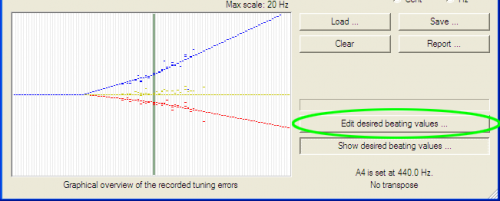
The tuner can use beat lists. These are lists with the desired beats per note. By clicking on the button 'Edit desired beat values…' in the bottom right corner, the screen with which the beat lists can be created, examined, loaded and saved will be opened. The text above this button shows the currently selected beat list.
Beat lists
Accordions generally have several reeds per note. The different reeds are tuned slightly different as a result of which a characteristic beat is achieved. The further the pitches of simultaneously sounding reeds lay from each other, the faster the beat. The amount of beat is different for every note. The beat generally gets larger (in hertz) as the notes get higher. The distribution of the amount of beat over the notes of the accordion is different per type of accordion and is stored in so-called beat lists. Each type of accordion has its own characteristic beat list. These beat lists can be created with the tuner. During tuning the tuner shows the desired beats for the reeds of the note to tune. The tuner can show the measured error of a reed with respect to the desired deviation from the beat list.
The measured errors with respect to the desired value from the beat list
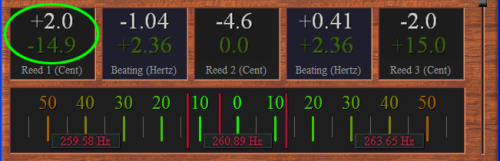
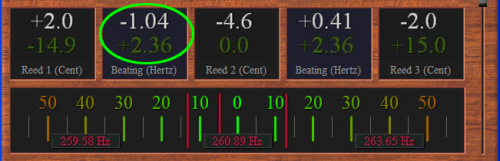
In the example below the tuner shows the measured errors with respect to the desired deviation from the beat list.
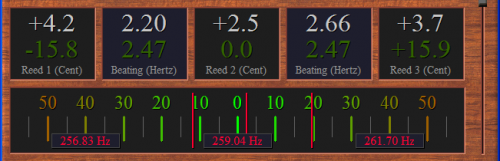
The tuner takes the desired deviations for the reeds of the note to tune from the beat list and shows these in dark green, right below the white value of the measured error of the concerning reed. The desired deviation from the beat list for reed 1 is in this case -14.9 Cent. The white value +2.0 Cent indicates that the reed is still 2.0 Cent too high. The deviation with respect to the exact value from the scale is therefore -14.9 + 2.0 = -12.9 Cent. The red needles at the bottom always give the errors of the reeds with respect to the exact value from the scale. The left red needle indeed indicates approximately -12.9 Cent. This way a reed has the desired value if the white measured value indicates zero. This applies for each reed and for each note.
The measured beat with respect to the desired beat from the beat list
The deviation of a reed is allowed to be a view Cent. The human ear is not able to observe this. The beat between two reeds is however observed much more accurate. For this reason the distance between the pitches of two reeds must be tuned more accurate then the separate reeds. If the errors of both reeds are equally too high or too low, then the beat nevertheless is good. The tuner can measure the deviation of the beat and this value can be used to tune the reeds.
In the example below the tuner shows the measured errors with respect to the desired deviation from the beat list. The tuner takes the desired beat between the reeds of the note to tune from the beat list and shows these in dark green, right below the white value of the measured beat error of the concerning reeds.
The desired beat between reed 1 and reed 2 from the beat list is in this case 2.36 Hertz. The white value -1.04 Hertz indicates that the measured beat is still 1.04 Hertz too low. The text boxes at the bottom near the red needles show the absolute frequencies of the measured reeds in Hertz. The difference between the left two frequencies is 260.89 - 259.58 = 1.31 Hertz. This is indeed 1.04 Hertz (2.36 – 1.31) too low. This way the beat has the desired value if the white measured value indicates zero.
Creating beat lists
The screen, in which the beat lists can be created, can be opened in two ways:
- In the settings screen (Menu - Settings…), click on the button 'Edit desired beat values…'.
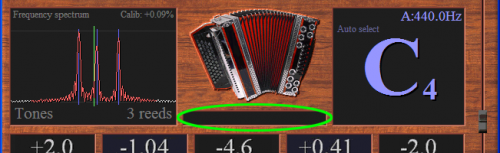
- Click on the text below the image of the accordion in the main screen of the tuner.
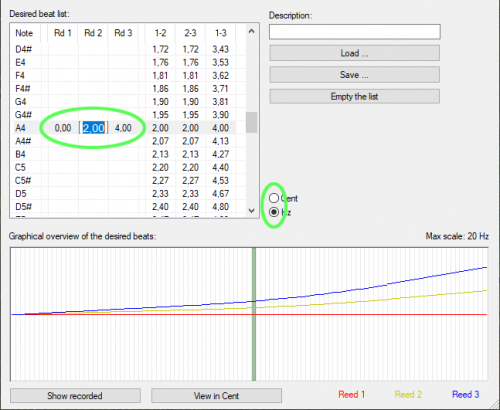
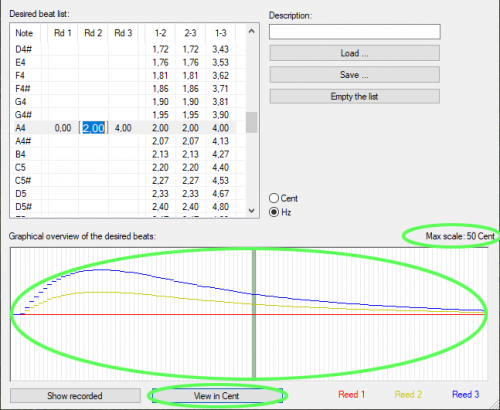
Beat lists can simply be created with the tuner using a table. Only a couple of reed deviations need to be entered. In the beat list below, all notes (E0 up to C9) are present. The desired reed deviations of several notes need to be entered in the columns 'Rd 1', 'Rd 2' and 'Rd 3'. The deviation can be entered by clicking on the desired cell in the table and using the keyboard to type the value and pressing 'Enter'.
The remaining column 'Btng' is automatically calculated and filled in by means of the reed columns. The missing reed deviations are calculated (interpolated and extrapolated) by means of the notes which are filled in. The beat list can be entered in Cent or in Hertz. This can be configured in the middle of the screen. Whether the beat list will be entered in Cent or Hertz has to be chosen before entering the reed deviations. If changed to Cent or Hertz, the beat list will reset and lose its current values.
A graphical overview of the beat list
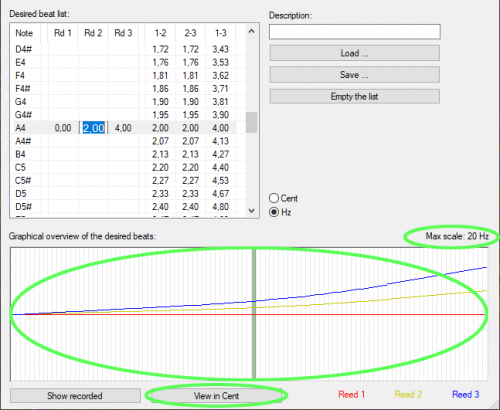
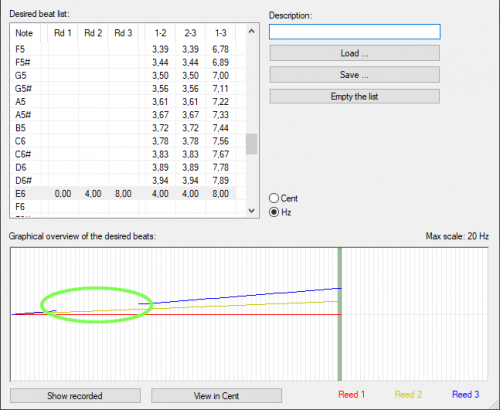
The beat list is also shown using a graphical overview. The columns represent the notes. The desired deviations of the reeds for each note are shown as horizontal lines. Reed 1 is red, reed 2 is yellow and reed 3 is blue. The maximum value of the graph (Max scale) is shown on the right, above the graph. This is the highest value in the graph. The zero line is in the middle and the value entirely at the bottom is also maximum but then negative. By clicking on a note (column) that note is marked with a dark green background and at the same time that note is also selected in the table on the left of the screen. The other way around, if another note is selected in the table then the marked note in the graphical overview also changes. By hovering with the mouse pointer for a moment just above a note in the graphical overview, a tool tip with the concerning note name and associated pitch in Hertz is shown.
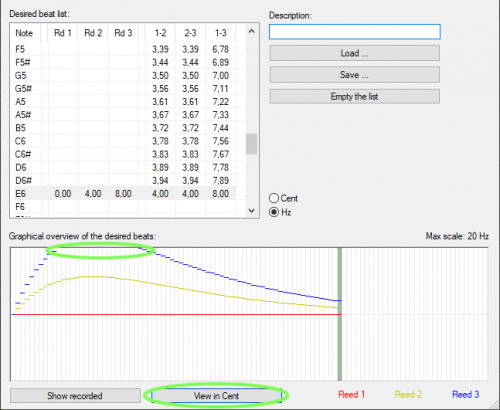
By clicking on the 'View in Cent' button, the graphical overview is shown in Cent instead of in Hertz. The beat values do not change because of this, but the lines in the graph look differently because the values in Cent are relative with respect to the pitches of the notes concerned. A screenshot of this is shown below. If the beat list is filled in Cent then this button changes to 'View in Hertz' and its function is inverted.
Determine the beat list using the recorded notes
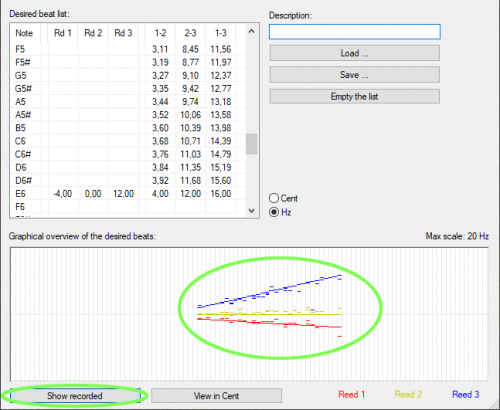
The beat list of an accordion is often not known. The beat list can then be determined mostly quite simple by recording all notes of the accordion and then in the screen for the beat lists creating a beat list and filling in the table. The recorded deviations of the reeds are shown in the graphical overview of the beat list when the button 'show recorded' is pressed. This is only possible if the module 'record and report' is present in the tuner. The lines in the graphical overview that represent the desired beats can now be adapted (by adapting the values in the table) in such a way that they run through the recorded deviations as well as possible.
Missing parts in the lines of the graphical overview
Note in the screenshot below that a part of the blue line is missing. The blue line shows the beats in Hertz. If the beats are shown in Cent (like in the second screenshot below) it can be seen that in this part of the blue line the beats are larger than 50 Cent. Such large beats are not realistic and are not supported by the tuner.
Alternative tunings
Beat lists can also be used to tune alternative tunings like the Pythagorean or the Werckmeister temperament. The value 0.00 in a reed deviation column stands for no deviation from the equal temperament. The deviation for each note can be altered to match any tuning you like. It is not yet possible to simply choose an alternative tuning in the software. You have to calculate the deviations with respect to the equal temperament manually. After that you can enter the calculated deviations in the beat list.
Store and load beat lists
To be able to use the beat list it must get a name first. Enter the desired name in the text box 'Description'. Beat lists can be stored as .btg files to be loaded again later. Use the button 'Save…' to store the beat list and the button 'Load…' to load a beat list.
Tuning accordions
Measure the correct pitch
The pitch of a reed changes slightly if the accordion is opened (or closed). The pitch changes also if the reed block is taken out of the accordion (or placed into). If a reed is tuned outside the accordion one must take this change in pitch into account. If the reed is placed back afterwards and the accordion is closed again, then the pitch must be exactly right. To check the final pitch of a reed it must be measured when the reed is in the closed accordion again.
Measure several reeds at the same time
When a conventional tuner is used, only one reed is allowed to play at the same time during measuring. Many accordions play several reeds at the same time when pressing a key. If the accordion has no buttons with which the reeds concerned can be disabled, the accordion must be opened first to disable those reeds. Afterwards the accordion must closed again to be able to measure the pitch. With Dirk's Accordion Tuner it is possible to measure several reeds (three maximum) which sound at the same time as a result of which it is not necessary to open the accordion and disable the reeds.
The conventional tuning process
To carry out the tuning process efficiently the following steps are generally used:
- Open the accordion.
- Disable the necessary reeds.
- Close the accordion.
- Measure all notes one by one and write down the measured values.
- Repeat step 1 to 4 until all reeds are measured.
- Compare all measured values with the desired values, calculate the differences and write them down. The errors of all reeds are now known.
- Open the accordion.
- Take the reed blocks out of the accordion.
- Tune the necessary reeds by means of the errors written down.
- Tune the beats by ear.
- Place the reed blocks back into the accordion.
- Repeat step 2 to 6 to check the tuned reeds.
The tuning process with Dirk's Accordion Tuner
- Measure all notes one by one and write down the errors with respect to the desired values (and the beats as well).
- Open the accordion.
- Take the reed blocks out of the accordion.
- Tune the necessary reeds (including beats) by means of the errors written down.
- Place the reed blocks back into the accordion and close the accordion.
- Repeat step 1 to check the tuned reeds.
The tuning process with the module 'record and report'
With the module 'record and report' the same steps are necessary, but nothing needs to be written down anymore and a tuning report can be printed.
Tuning accordions with the module 'record and report'
The tuner can be extended with a module that can quickly record all the notes of the accordion and generate a report from that. This report gives the errors of all reeds in a conveniently formatted table. After opening the accordion, the reeds that differ too much can be corrected on the tuning table using the errors from the report. The reeds (that have a deviated pitch outside the case) will have the right pitch after putting them back into the accordion. The report can be generated and printed again afterwards to go with the accordion as the tuning report. With the module 'record and report' the possibility is given to create (unknown) beat lists of existing accordions.
Record the notes
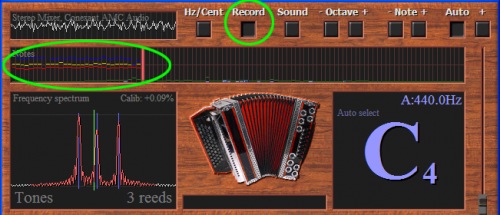
The record mode of the tuner is enabled by pressing the button 'record'. The record mode only works when single notes are measured. Chords and octaves cannot be recorded. The mesh on the background of the equalizer turns red in record mode and a cursor (the red beam) appears in the left side of the equalizer. As soon as the tuner measures a stable and accurate note, the measured errors of the reeds are stored in the box of the red cursor.
The word 'Recorded' then appears in the note window in red on the left side below the note character. The red cursor then shifts one box to the right. After a short period of silence the next note can be recorded. Recorded notes can be removed with the 'Backspace' of the keyboard. By shortly hovering above a box with stored errors with the mouse pointer, a tooltip with information about the stored note, the errors and beat appears. It is possible to record the same note several times as is necessary with most diatonic harmonicas. In the screenshot below a number of notes are recorded with two reeds (horizontal red and yellow lines) per note.
The overview of the recorded notes
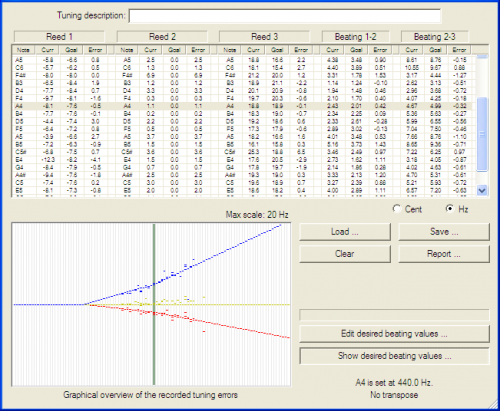
The overview of the recorded notes (the tuning) is opened by releasing the button 'Record'. The overview can also be opened through 'Menu - Record and Report…'. In the upper text box 'Tuning description', a description of the tuning must be given. This description is used in the tuning report. All recorded notes are listed in the table.
The data concerning the reeds
The data concerning the reeds are grouped by reed below the headings 'Reed 1', 'Reed 2' and 'Reed 3'. The columns for the reeds which are not recorded remain empty. It concerns the following columns:
Note: The name of the recorded note. The order of the recorded notes in the table is equal to the order in which the notes are recorded. The same note can appear several times.
Curr: The current measured error of the reed in Cent with respect to the exact pitch from the scale.
Goal: The desired deviation for the reed from the beat list in Cent. This column is empty when no beat list is loaded.
Error: The error in Cent which the reed is apart from the desired deviation. This column is empty when no beat list is loaded.
The data concerning the beats
The data concerning the beats are grouped per reed couple below the headings 'Beat 1-2' and 'Beat 2-3'. The columns for the beats which are not recorded remain empty. Below the table is chosen if the values in these columns are given in Cent or in Hertz. It concerns the following columns:
Curr: The current measured beat.
Goal: The desired beat. This column is empty when no beat list is loaded.
Error: The error in the beat. This column is empty when no beat list is loaded.
Edit the recorded errors
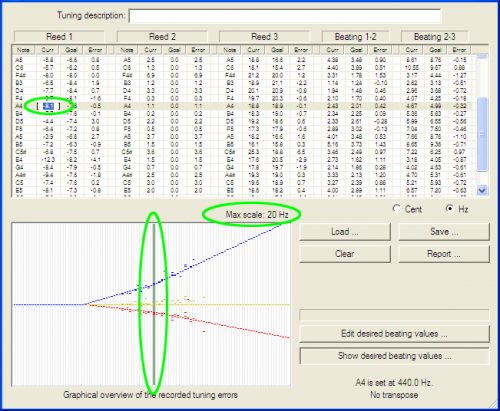
The values in the 'Curr' columns of the reeds can be manually edited here by clicking on the value concerned and pressing the Enter button of the keyboard. If a value is changed, the other values of the same note are calculated again.
Stop recording
If this screen with the recorded tuning is closed with the red cross then the tuner will continue recording. Recording is stopped if there are no recorded notes left. All recorded notes are removed at once by pressing the button 'Clear'. If this screen with the recorded tuning is closed afterwards then the tuner stops recording.
The graphical overview of the recorded errors
The graphical overview of the recorded errors 'Graphical overview of the recorded tuning errors' shows the errors of the reeds per note. The notes are sorted from left to right from E0 to C9. The notes which are recorded several times fall into the same column and are all shown there. The different red, yellow and blue lines then are not clearly distinguishable from each other. By shortly hovering above a column with recorded notes with the mouse pointer, a tool tip appears with data concerning the note (name and frequency), the errors of the reeds and the beats. If the note concerned is recorded several times then this data is shown in the tool tip several times. On the right side above the graph the maximum value of the scale (Max scale) is shown. This is the upper most value in the graph. The zero line is in the middle and the value at the bottom is also the maximum but then negative. By clicking on the column, the column is marked by a dark green background and the corresponding line in the table is selected. If the note concerned is recorded several times then the corresponding lines in the table are selected one after each other by clicking several times on the column in the graphic overview.
Store and load recorded tunings
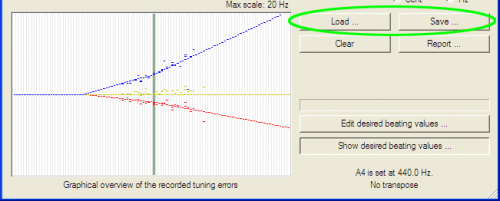
To be able to use the recorded tuning it must first be given a name. Enter the desired name in the text box 'Tuning description' in the top of the screen. Recorded tunings can be stored as .tun files to be loaded later. Use the button 'Save…' to store the recorded tuning and the button 'Load…' to load a previously stored tuning.
Edit the beat list
The screen with which the beat list can be loaded and edited, is opened with the button 'Edit desired beat values…'.
Show the desired beats
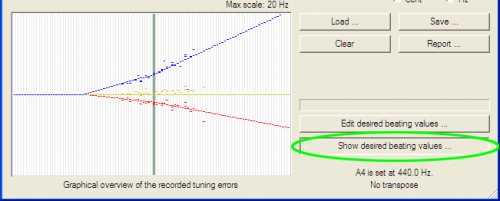
The desired deviations from the current beat list can be shown in the graphical overview by pressing the button 'Show beat values'.
Create tuning reports
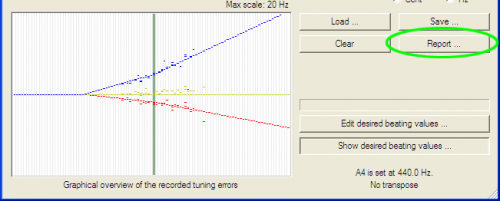
A report can be created from the recorded tuning. This report gives the error of each reed in a conveniently formatted table. After opening the accordion, the reeds which deviate too much can be corrected on the tuning table using the values from the report. The reeds which have an deviated frequency outside the case will get the correct frequency after being put back into the accordion. The report can be generated again afterwards and be joined with the accordion as its tuning report. The screen with which a tuning report can be created, is opened by pressing the button 'Report…'.
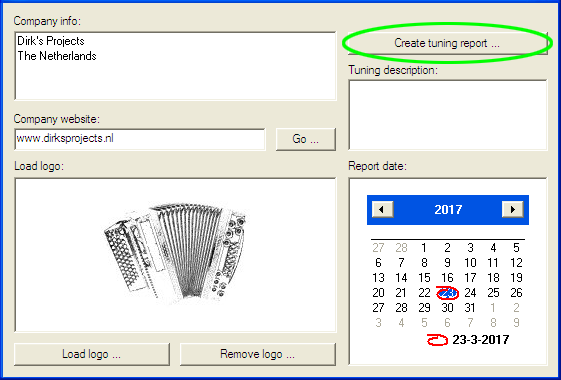
A tuning report can be created with the screen below. The information that will be placed in the report in addition to the measured errors and the beats must be filled in here. Company information such as name, address and place of residence of the tuner can be entered in the text box 'Company info'. The website of the tuner (URL) can be entered in the text box 'Company website'.
To test the URL, the website can be opened by pressing the button 'Go'. The company's logo can be loaded with the button 'Load logo'. The following formats are supported: bmp, gif, jpg and wmf. The date that comes on the report can be changed with 'Report date'. If all information is entered, the tuning report can be created with the button 'Create tuning report'.
View and print the tuning report
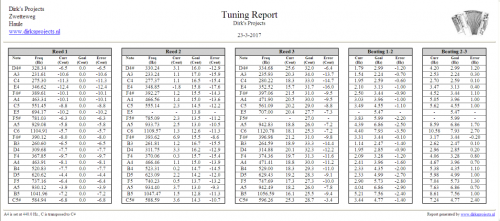
As soon as the tuning report is stored it is opened in the Internet browser. The tuning report is stored as an html file. The stored report can be viewed again afterwards by looking it up with the Windows Explorer and then double clicking on it. The tuning report can be printed using the print function of the Internet browser. An example of a tuning report with a number of notes from a diatonic harmonica with two reeds per note is given below. Three reeds per note is also possible.
Import the report data into another application
The report data can be imported into another application that supports the xml format, like MS Excell. When the report is created, it is stored as an html file. The report's data is stored as an xml file as well. This xml file can be imported into any application that supports the xml format, so you can process the data in any way you like.
Noise reduction
Beside the notes that need to be measured, a lot of other undesirable sounds are measured by the microphone. These are for example sounds such as the cooling fan of the computer, a car driving by, a slamming door, a barking dog, wind etc. All these sounds disturb the measurements and for this reason are suppressed by the tuner automatically.
Background sounds
The tuner measures background sounds and determines their pitch and volume. The strength of background noise is indicated in the tuner with a horizontal green line per note. Long lasting sounds are considered as background sounds. As soon as a note (one of the blue bars) reaches out of the background sounds then the tuner can select this note to be measured. In case of an extreme amount of background sounds it is possible to enable the option 'Enh. Noise reduction' in the settings screen (Menu - Settings…). Background sounds are then extra reduced.
Slamming doors or foot steps
The low sounds which are produced by for example slamming doors or foot steps on a wooden floor are automatically filtered out by the tuner.
50 or 60 Hz hum
The 50 or 60 Hertz hum which is frequently produced by the power supply of the computer is filtered out by the tuner automatically. If an extreme amount of this type of hum is picked up by the microphone, a so-called 'hum filter' can be enabled in the configuration screen (Menu - Settings…). The tones nearby 50 or 60 Hertz are then extra reduced.
Automatic sensitivity
The sound volume of the reed to measure that is received by the tuner depends on the following factors:
- The sound volume produced by the reed.
- The distance from the reed to the microphone.
- Obstacles between the reed and the microphone.
- The sensitivity of the microphone.
- The sensitivity of the sound card.
- The Windows volume settings for the microphone input.
To make the tuner work under all circumstances, the incoming signal is amplified to a standard level automatically.
The accuracy of the tuner
The maximum accuracy in Hertz and in Cent
The accuracy of the Accordion Tuner is better (less) than 0.05 Hertz (waves longer than 20 seconds). The accuracy in Cent gradually changes over the range of the tuner because a Cent is a relative unit. The interval (the width) of a note in Hertz increases as the pitch gets higher and the width of a note in Cent is by definition (always) 100. Some values of the accuracy of the tuner in Cent: C1: 2.6 Cent, C2: 1.3 Cent, C3: 0.7 Cent, C4: 0.3 Cent, C5: 0.2 Cent, C6: 0.08 Cent, C7: 0.04 Cent, C8: 0.02 Cent, C9: 0.01 Cent. So in Cent, the tuner gets therefore more accurate as the pitch gets higher.
Detectable pitch differences
The smallest by human ear detectable pitch difference is approximately 2 Hertz. The accuracy of the tuner of 0.05 Hertz is many times better. This high accuracy is necessary to measure the beat between two reeds. A difference in beat of more than approximately 0.1 Hertz is already detectable by the human ear.
Accuracy of the measured beat
The accuracy of the measured beat is better (less) than 0.1 Hertz. The smallest measurable beat is approximately 0.6 Hertz. The largest measurable beat is limited because both tones must be in the range of the same note.
Automatic calibration
The tuner uses the sound card for its measurements. To compensate possible errors in the sound card, the tuner carries out an automatic calibration. Manual calibration such as those often possible on conventional tuners (with a screw for example), is not necessary. Because of this the measurements of the tuner are always accurate enough.
The internal accuracy
The tuner shows the measured errors with 1 or 2 decimal places (digits behind the comma). The tuner calculates with 7 decimal places internally. Right before an error is shown, it is rounded on 1 or 2 decimal places.
Influences from outside
Beside the accuracy of the tuner itself, the following influences from outside must be taken into account:
- The pitch of a reed changes if the accordion is opened and changes back if the accordion is closed again.
- The pitch of a reed changes if the reed block is taken out of the accordion and changes back if the reed block is put back in again.
- The pitch of a reed decreases as the bellow pressure increases. The amount of beat between two reeds virtually does not change because both reeds decrease equally.
Shortcut keys and clicks
Left arrow
Decrease the selected note by one semi tone.
Right arrow
Increase the selected note by one semi tone.
Spacebar
Freeze the tuner.
Enter
Record a note that is not (yet) locked.
Backspace
Remove the last recorded note.