Preface
This guitar tuner is specifically developed for fast and easy tuning of guitars. Six and seven string acoustic and electric guitars and four, five or six string bass guitars can be tuned.
The tuner reacts quickly and accurate (± 0.5 Cent) and is insensitive for surrounding noises. The sounding string is recognized automatically and the deviation is displayed clearly. The sounding tone is displayed on a scale as well in case the deviation is bigger then 50 Cent so the tone is in range of another note. This comes in handy when tuning a new string for the first time. “Quadra Flat Tuning” is supported for tuning without removing the capo. The frequency of the A4 is adjustable between 430Hz and 450Hz in 1Hz steps.
Please take some time to read this manual. This will certainly save you a lot of time later on. If you find things missing, in error or unclear please send me an e-mail.
The trial version
The trial version of the Guitar Tuner runs on every pc or laptop that conforms to the system requirements as stated in this manual. You may install the trial version of the Guitar Tuner on multiple computers and send it to your friends.
The trial version does not support tuning the lower B, E and A strings. The rest of the strings can be tuned. It is the intention that this is enough to test the Guitar Tuner. The function “quadra flat tuning” is not supported by the trial version.
A number of important terms
- Frequency
the number of waves per second of a tone (pitch).
- Sound
the total range of wavelengths that can be perceived by the human ear.
- Tone
sound with a fixed pitch.
- Note
notation indicating a tone with a specific pitch and length.
- Scale
increasing or decreasing sequence of tones in a fixed order.
- Pitch
the perceived frequency of a tone. This is the fundamental frequency.
- Fundamental tone or tonic
the perceived pitch. The lowest tone of the collection of tones that make up a sound.
- Overtone
a tone in a sound that has a higher frequency then the tonic. The overtones are multiples of the tonic.
- Beat(ing)
a beat(ing) occurs when two tones with a small difference in pitch sound at the same time.
The microphone signal
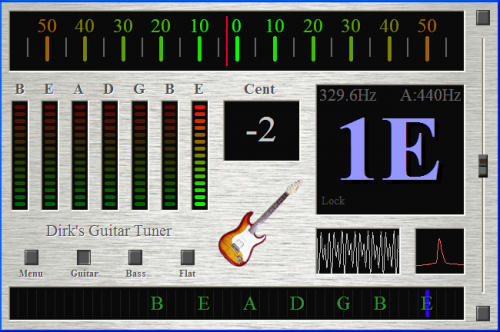
This screen displays the signal measured by the microphone. With this screen you can check if your microphone works. This screen is not used for the tuning process.
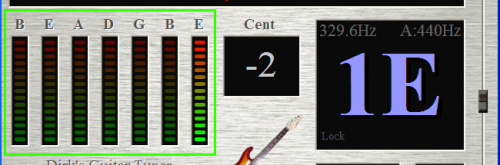
The sound levels of the strings
These sound level gauges displays the sound levels of the strings. The sound levels that are displayed here depend on the sensitivity of the microphone that is configured in Windows. These gauges are not used for the tuning process.
The frequency spectrum of the note to be tuned
This screen displays a small graph of the frequency spectrum of the note to be tuned. This screen is not used for the tuning process.
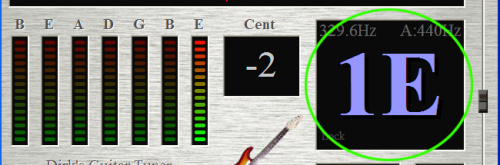
The tone to be tuned
This screen displays the note value of the sounding string. The note value is displayed as a large character in the middle of the screen.
The number left to this character shows the string number. For a six or seven string guitar the high E string is number 1 and the low E string is number 6. The low B string is number 7. For a bass guitar the G string is number 1 and the B string is number 5. The high C string is not being numbered. In the upper right corner of this screen the frequency of the A4 is displayed. Normally this is 440 Hz, but this value can be adjusted with the slider at the right side of the Instrument Tuner. In the upper left corner the frequency that the selected tone should have is displayed. The 'Quadra Flat Tuning' setting is displayed in the lower right corner.
The deviation of the tone to be tuned
This screen displays the deviation of the measured tone with respect to the closest tone in the scale. The display ranges from 50 Cents too low to 50 Cents too high.
The red line indicates the value of the measured tone. The measured tone is tuned when the red line is in the middle (on the green zero-line) of the gauge. A small deviation (+/- 3 Cents) is permitted because this can not or hardly be detected by the human ear. If the red line is on the left side of the middle then the tone is too low and if the blue line is on the right side of the middle then the tone is too high. The number in the small screen “Cent” shows the deviation of the tone in Cents.
The tone to be tuned on the scale
This screen shows the measured tone on the scale. The vertical lines show the different notes. The notes on the guitar are indicated by green characters.
A blue vertical line shows in which note the measured tone lies. If the measured tone is in range of one of the notes on the guitar then the tuner will measure and display the deviation of this tone. The blue vertical line is then on top of one of the green characters. With this screen you can see if a tone that is out of the range of the notes on the guitar is to high or to low. This comes in handy when tuning a new string for the first time.
Set the frequency of the A4
With the slider on the right side of the Instrument Tuner you can tune your instrument in another pitch than the standard A=440Hz. With this slider you can set the A frequency between 430Hz and 450Hz with 1Hz steps. All other keys will change accordingly. The current pitch (frequency) of the A is displayed in the top of the screen that displays the note value.
Guitar or bass
You can change between tuning a guitar and a bass using the buttons “Guitar” and “Bass”. While tuning a guitar the notes B1, E2, A2, D3, G3, B3 and E4 can be tuned. While tuning a bass the notes B0, E1, A1, D2, G2 and C3 can be tuned.
Quadra Flat Tuning
Each time the 'Flat' button is pressed, the number of b's will increase in the bottom of the screen that displays the note value. This way it is possible to tune 1 to 4 tones above the displayed note value. If the capo is used then it is not necessary to remove it. Press multiple times on the 'flat' button depending on the capo's position.
How much is a Cent?
The deviation of a tone with respect to the closest tone in the scale is indicated in Cent. 100 Cent is the distance between a tone in the scale and the next. If the tone to be tuned has a deviation of 50 Cent then its pitch is exactly between two tones of the scale.
Settings
The guitar tuner configures its settings automatically as much as possible. This way the tuner is easy to use. The number of settings is kept to a minimum. By pressing on the button 'Menu' and selecting “Settings” the microphone to be used can be selected.
If the microphone does not work right away then it is possible that your Windows settings are not configured as they should. The Windows screen, where you can change the microphone settings, can be shown by clicking on the 'Microphone Volume Settings' button.